
.jpeg?w=4096&h=4096)
.jpeg?w=4096&h=4096)
.jpeg?w=3200&h=3200)
.jpeg?w=3200&h=3200)
.jpeg?w=800&h=800)
.jpeg?w=3276&h=3208)
.jpeg?w=3200&h=3200)
.jpeg?w=800&h=800)
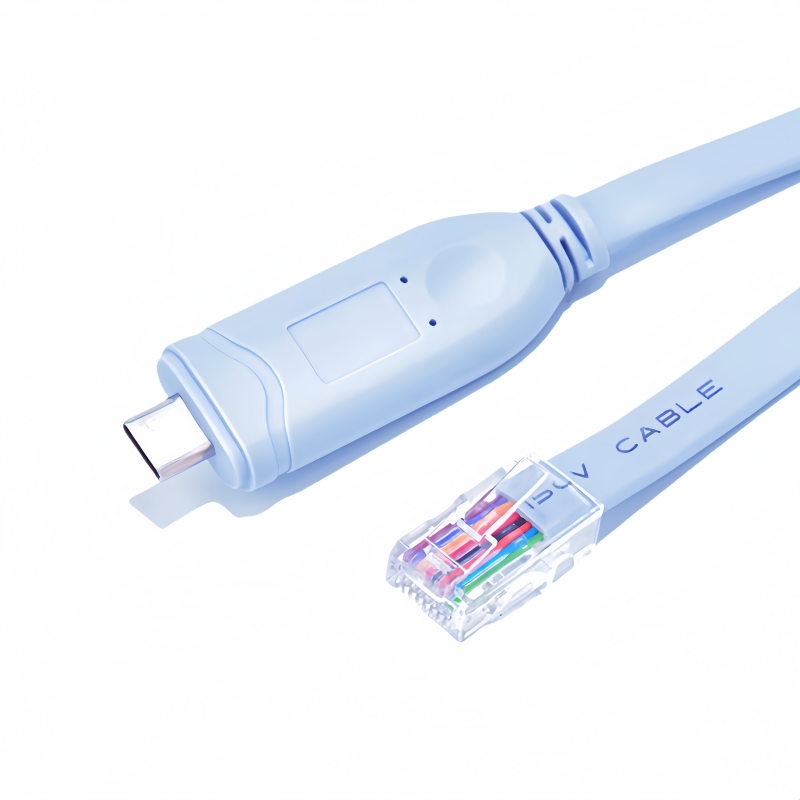
Cisco USB-C Console Cable USB Type C to RJ45 Serial Port Adapter Essential Accessory for Laptops to Cisco, NETGEAR, Ubiquity, LINKSYS, TP-Link.
Product Overview
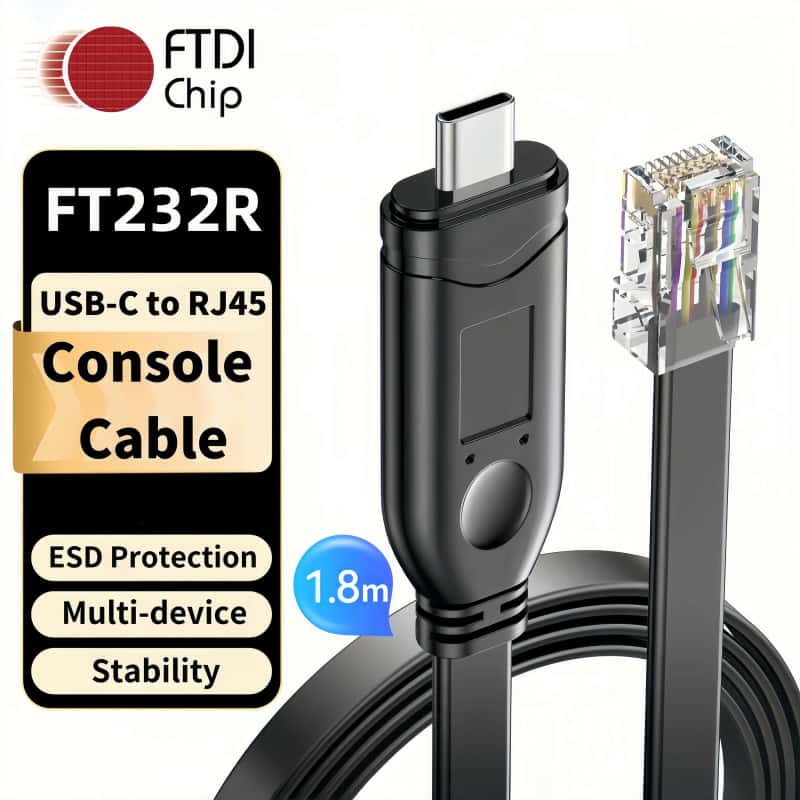
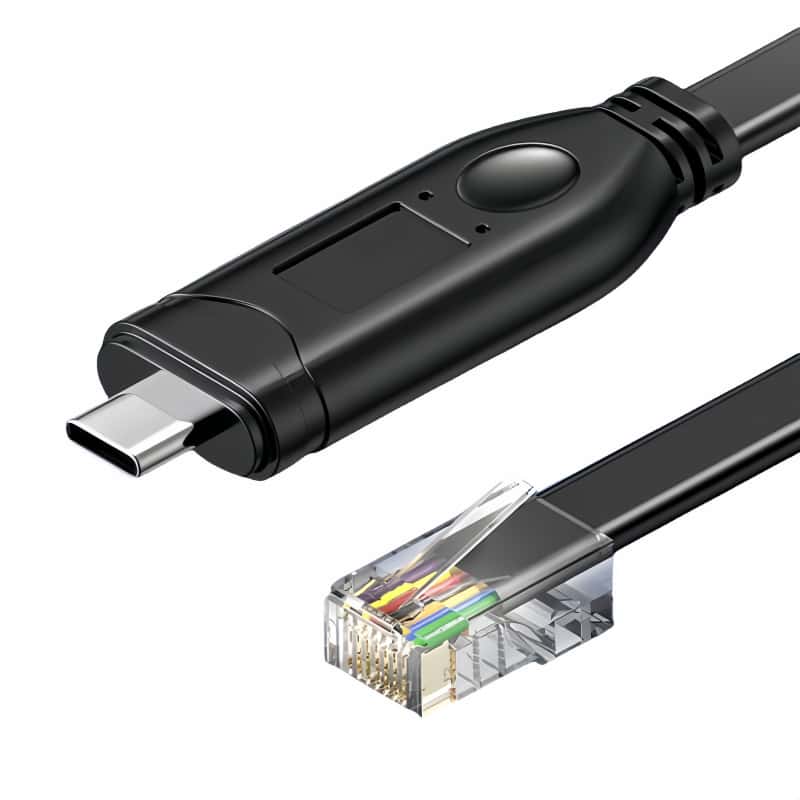
This Cisco USB - C Console Cable is an essential accessory for connecting laptops to network devices like Cisco, NETGEAR, Ubiquity, LINKSYS, and TP - Link. It features a USB Type - C male connector on one end and an RJ45 8P8C jack on the other, with the FTDI FT232R + ZT213 chipset inside, ensuring stable and compatible serial communication.
Product Specifications
- Color: Light Blue
- Length Options: 6ft/10ft (select as per your need)
- Cable Type: Cisco USB - C Console Cable
- Chipset: FTDI FT232R + ZT213 Chipset
- Connectors: Type - C Male to RJ45 8P8C Jack
- Compatible Systems: Windows XP, Win7/8/10/11, Mac OS, Linux, Android
Key Features
1. ESD Electrostatic Protection
Built - in ESD components can withstand 4KV of static electricity. This protects against chip damage caused by static during hot - swapping, ensuring the cable and connected devices remain safe.
2. Technical Support Capabilities
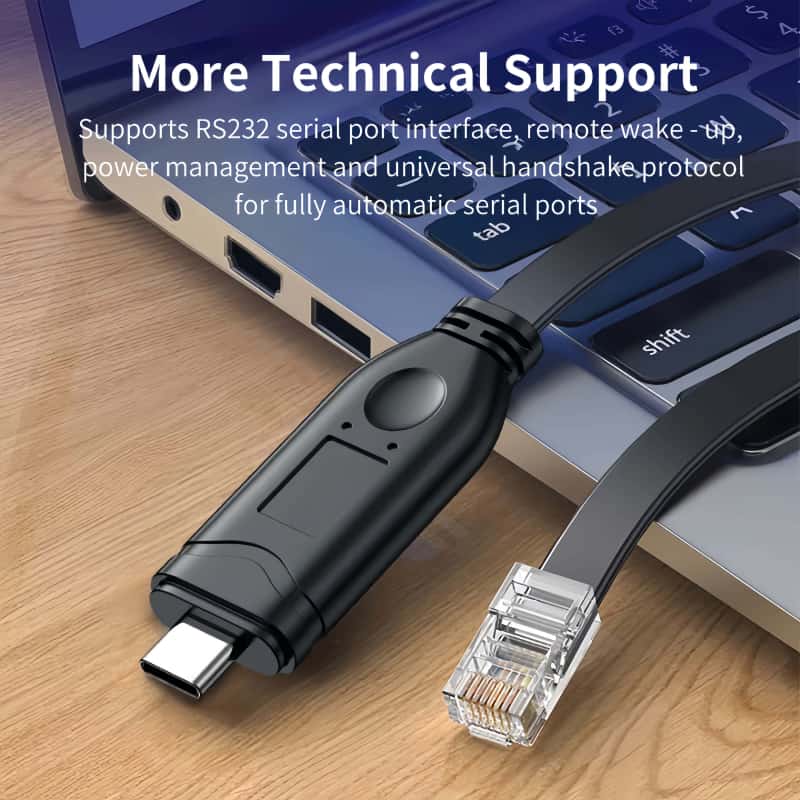
Supports RS232 serial port interface, remote wake - up, power management, and the universal handshake protocol for fully automatic serial ports. This allows for versatile communication and management of network devices.
3. Flat Design for Easy Storage
The flat - designed cable has a soft PVC outer sheath. It is not prone to tangling, easy to store, and resistant to abrasion and pulling, making it convenient for use in various environments.
4. Multi - system Compatibility
- Driver - free for Modern Systems: No drivers are required for Win8/10/11. It offers plug - and - play functionality with one - click installation, hassle - free.
- Support for Older Systems: Compatible with Windows XP, Win7, Mac OS, Linux, and Android. For systems below Win7, contact customer service for drivers.
5. High - Performance Chipset
The engineering - grade FTDI FT232R chip provides better stability and compatibility during serial communication, ensuring smooth data transfer between your laptop and network devices.
Instructions for Use
1. Connecting Devices
- Laptop Connection: Insert the USB - C male connector into the USB - C port of your laptop.
- Network Device Connection: Plug the RJ45 8P8C jack into the console port of the target network device (e.g., Cisco router, NETGEAR switch). Ensure a secure connection.
2. Driver Installation (if needed)
- Win8/10/11: Usually, no driver installation is required. The cable should be recognized automatically.
- Windows XP, Win7: You may need to install the appropriate drivers. Contact customer service to obtain the drivers and follow the installation instructions.
- Mac OS, Linux, Android: Depending on the system, the cable may be recognized automatically or require specific driver installation. Refer to the system - specific documentation or contact customer support if needed.
3. Accessing the Network Device Console
- Open Terminal/Console Application:
- Windows: Use applications like PuTTY. Select "Serial" as the connection type, choose the appropriate serial line (assigned to the cable, e.g., COMx), and set the baud rate (common rates for console connections are 9600).
- Mac OS/Linux: Use terminal applications. For example, in Linux, you can use
minicomorscreencommands. Configure the serial port settings (e.g.,/dev/ttyUSBxfor the device and the correct baud rate). - Android: You may need to install a serial console app from the Google Play Store that supports USB - C to RJ45 connections.
- Log in to the Network Device: Once the connection is established, enter the username and password (if set) for the network device to start configuring, managing, or troubleshooting it.