
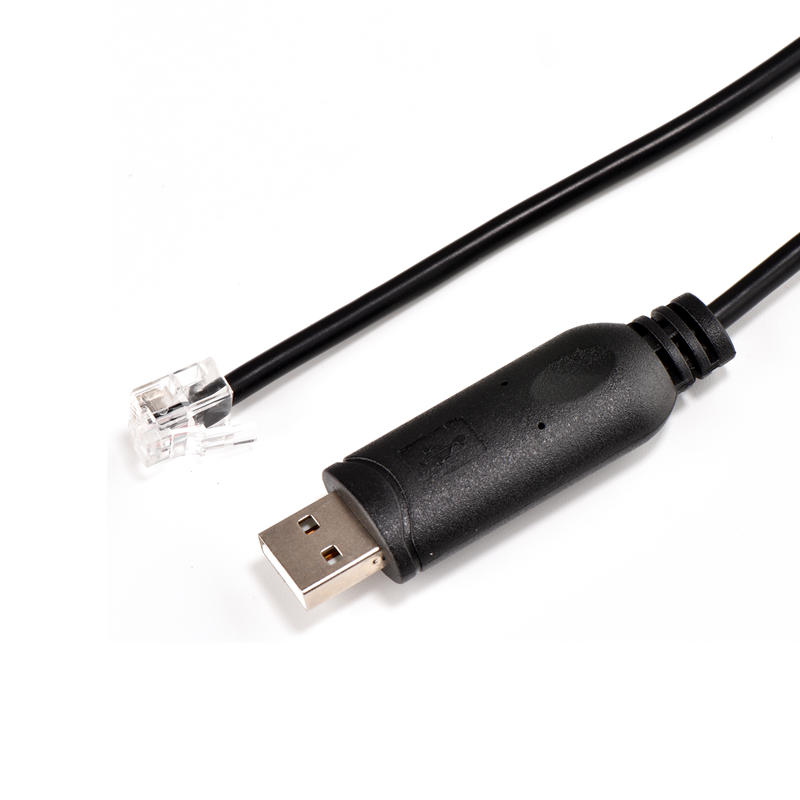
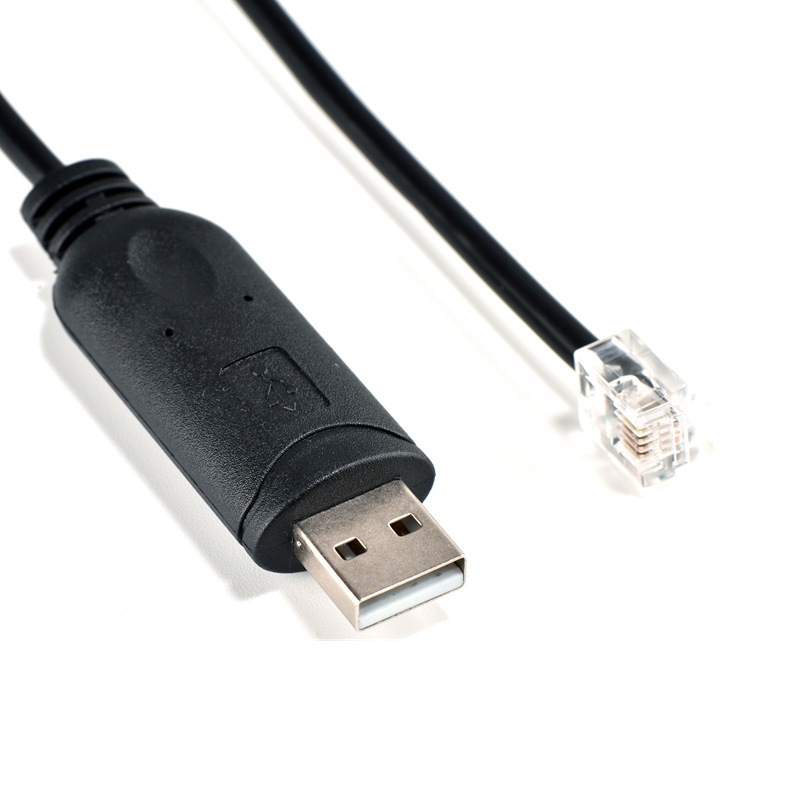
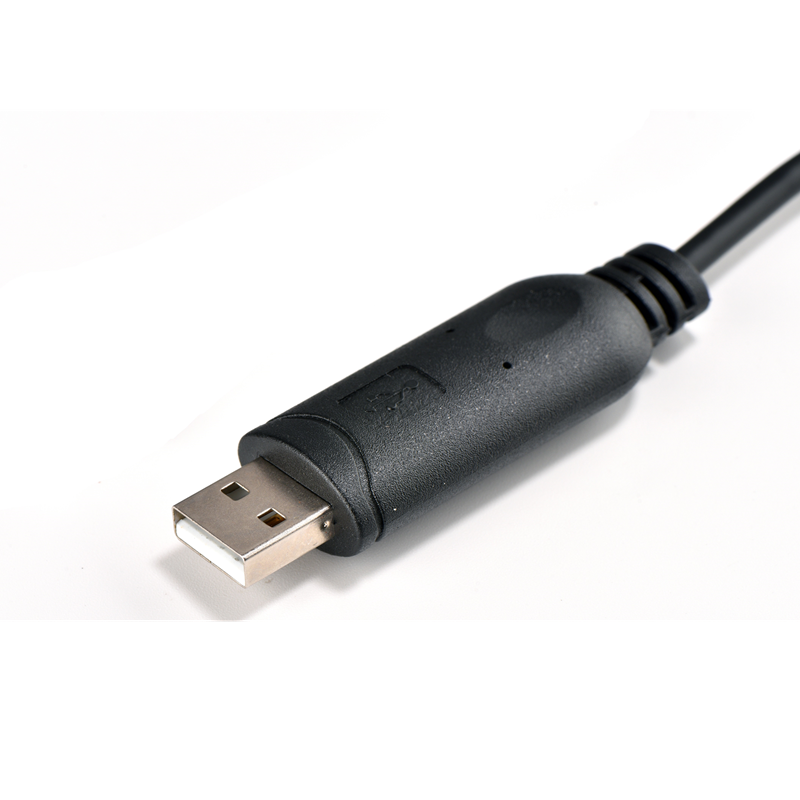
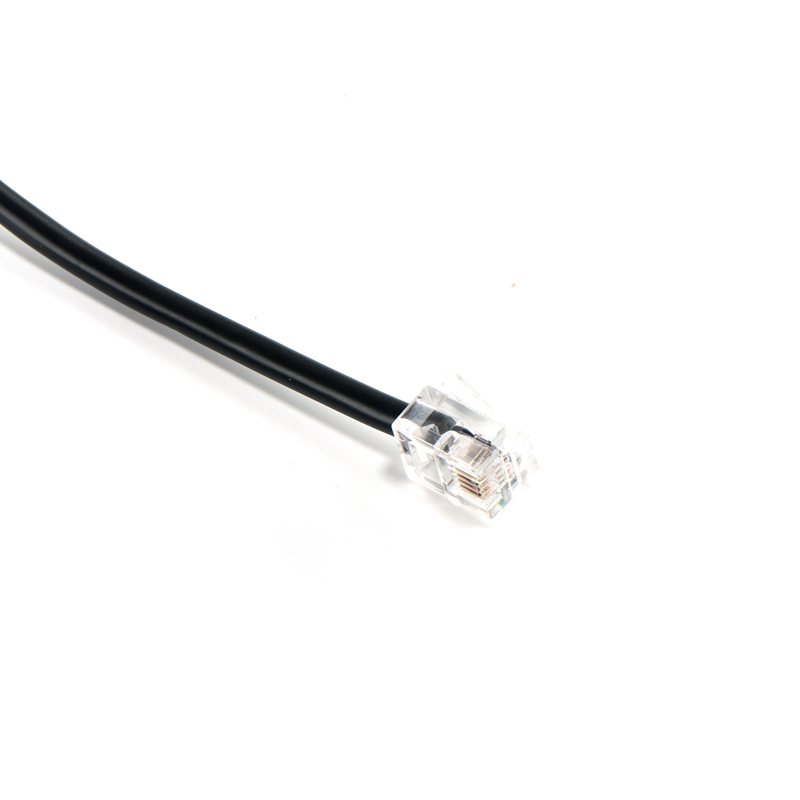
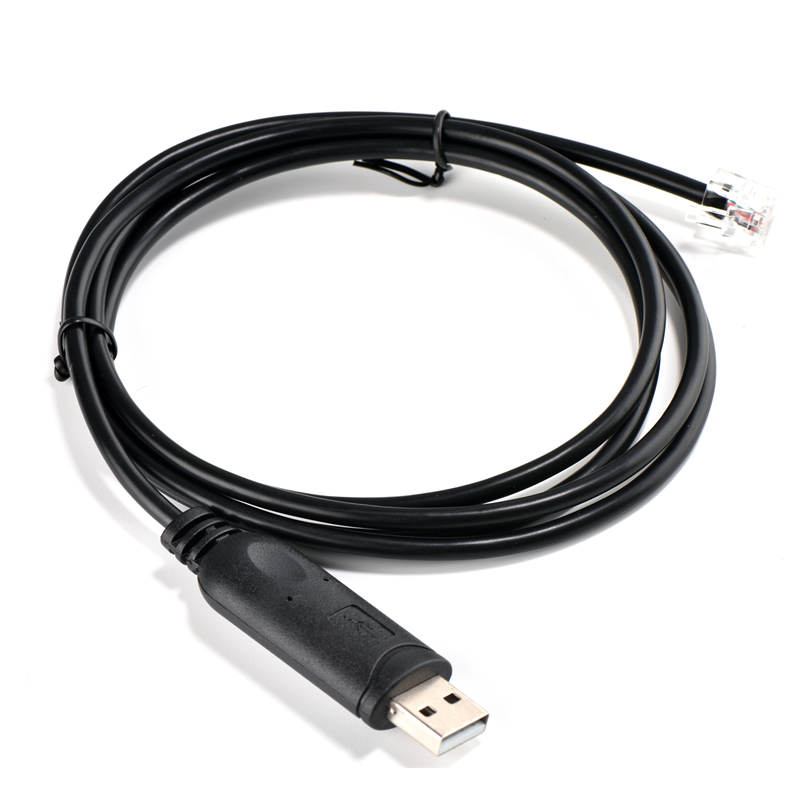
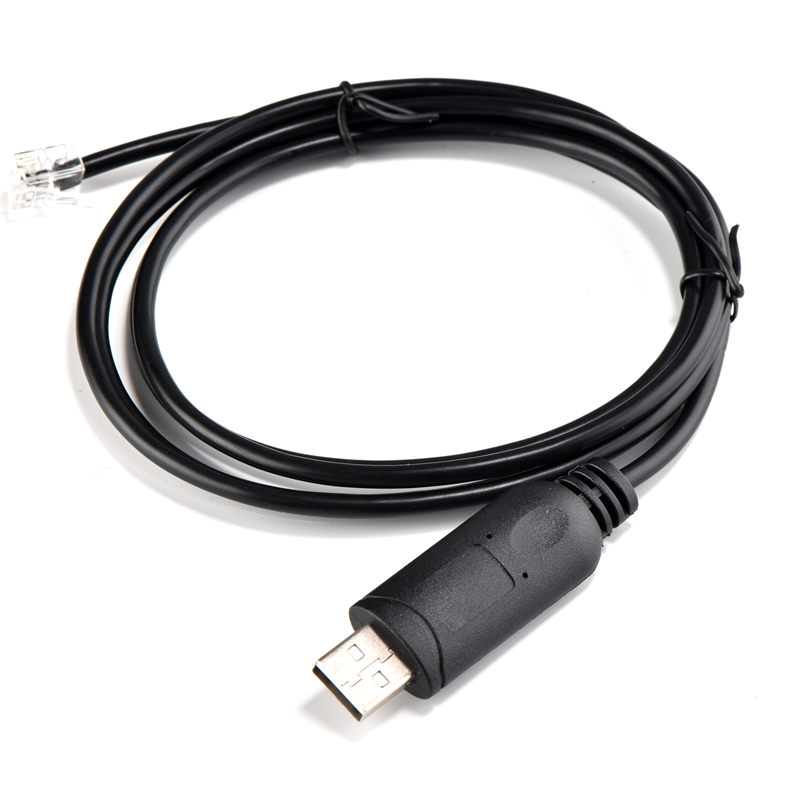
Upgrade your connectivity with the FTDI USB to RJ9 Adapter! Seamlessly connect modern USB ports to legacy RS232 devices with RJ9 interfaces for industrial automation, telecom systems, and more.(Scroll down to see user guide)
FTDI USB to RJ9 4P4C RS232 Serial Converter Cable-Next-Gen Serial Connectivity for RJ9-Enabled Devices
The FTDI USB to RJ9 4P4C RS232 Serial Converter Cable bridges modern USB ports with legacy RS232-equipped devices featuring compact RJ9 (4P4C) interfaces. Ideal for industrial automation, telecom systems, and Celestron telescopes, this cable delivers reliable, high-speed data transfer.
Core Features
- FTDI FT232R Chipset: Ensures stable USB-to-serial conversion with support for baud rates up to 3Mbps.
- RJ9 4P4C Compatibility: Connects to devices like PBX systems, modems, and Celestron NexStar EQ6 telescopes.
- Plug-and-Play Simplicity: Auto-installs drivers on Windows 10/11; macOS/Linux require FTDI VCP driver download.
- Premium Cable Construction: 28AWG bare copper conductors (4C, OD3.5mm) with EMI shielding for signal integrity.
Technical Specifications
| Specification | Details |
|---|---|
| Interface | USB 2.0 Type-A Male to RJ9 4P4C Male |
| Chipset | FTDI FT232R |
| Protocol | RS232 (TTL level) |
| Cable Length | 1.0M or 1.8M (custom lengths available) |
| OS Support | Windows, macOS, Linux, Android |
| Certifications | CE, FCC, RoHS |
Applications
- Telecom: PBX systems, telephone handsets, and modem configurations.
- Industrial Automation: PLCs, sensors, and legacy machinery integration.
- Astronomy: Celestron NexStar EQ6 telescope control via SynScan handcontroller.
- Consumer Electronics: Programming Uniden scanners and specialized hardware.
Celestron NexStar EQ6-Specific Features
- Direct Compatibility: Works with Celestron P/N 93920 for PC-to-handcontroller connectivity.
- SynScan Support: Enables alignment/goto functionality with SynScan V3.01+ firmware (always-on serial mode).
- ASCOM Integration: Compatible with Planetarium software via ASCOM NextStar drivers.
Compatibility List
- Devices:
- Celestron NexStar EQ6, CPC, and other RJ9-equipped telescopes.
- Telecom PBX systems, modems, and serial-controlled hardware.
- OS:
- Windows 10/8/7/XP/Vista, macOS (10.8+), Linux, Android (driver-dependent).
Installation Guide
- Connect Hardware:
- Plug USB-A into your PC and RJ9 into the target device.
- Driver Setup:
- Windows: Auto-install via Windows Update.
- macOS/Linux: Download FTDI VCP Driver from FTDI’s website.
- Configure Software:
- Use terminal emulators (Tera Term, PuTTY) with baud rate 9600 (default for Celestron).
Features
- Reliability: Genuine FTDI chip with RS232 level shifter for stable signal transmission.
- Durability: Reinforced PVC jacket withstands industrial use.
- Warranty: 12-month coverage with technical support for custom configurations.
Upgrade Your RJ9 Connectivity
Seamlessly integrate legacy RS232 devices with modern USB systems using the FTDI USB to RJ9 Converter—engineered for precision, compatibility, and performance.
Seamlessly integrate legacy RS232 devices with modern USB systems using the FTDI USB to RJ9 Converter—engineered for precision, compatibility, and performance.
How to use the FTDI USB to RJ9 Adapter 4P4C RS232 Serial Converter Cable?
1. Driver Installation
- Plug the USB end into your computer. Most modern systems (Windows 10/11, macOS, Linux) will automatically detect the FTDI chip and install drivers.
- If drivers don’t install automatically:
- Download the official FTDI drivers from FTDI’s website.
- Install the drivers for your OS (Windows, macOS, Linux).
- For Linux, drivers are often pre-installed, but verify via
lsusbordmesg.
2. Connect the Cable
- USB Port: Plug the USB-A male connector into your computer.
- RJ9 Port: Connect the RJ9 4P4C jack to your target device (e.g., Celestron telescope, PBX system, or legacy serial equipment).
- Note: Ensure the pinout matches your device’s requirements. For example, Celestron NexStar EQ6 telescopes require specific RX/TX/GND mappings (check your device manual).
3. Configure the Serial Port
- Windows:
- Open Device Manager → Expand Ports (COM & LPT).
- Note the assigned COM port (e.g.,
COM3). - Right-click the port → Properties → Set Baud Rate, Data Bits, Stop Bits, and Parity to match your device’s settings.
- macOS/Linux:
- Use tools like
screen,minicom, orcuto access the serial port (e.g.,/dev/ttyUSB0). - Set the same parameters as your device (e.g.,
screen /dev/ttyUSB0 9600).
- Use tools like
4. Test Communication
- Use a serial terminal program (e.g., Putty on Windows, CoolTerm on macOS, or minicom on Linux):
- Open the software.
- Select the correct COM port or
/dev/ttyUSBX. - Set the baud rate and other parameters to match your device.
- Click Connect and send/receive data.
5. Troubleshooting
- Driver Issues: If the port doesn’t appear, reinstall drivers or try a different USB port.
- Incorrect Pinout: Verify the RJ9 pins match your device’s RS232 requirements (e.g., TX/RX swapped).
- Power Supply: Some devices may require external power if the USB port doesn’t provide enough voltage.
Example Use Case (Celestron NexStar EQ6 Telescope)
- Connect the RJ9 end to the telescope’s hand controller.
- Plug the USB into your computer.
- Use Celestron’s software (e.g., NexStar) or ASCOM drivers to control the telescope.
Keywords:FTDI USB to RJ9, 4P4C RS232 Converter, Celestron NexStar EQ6 Cable, USB to Serial Adapter, FTDI FT232R Chip, RJ9 4P4C Connector, 1.0M/1.8M Cable, Windows/Mac/Linux Compatibility, CE/FCC/RoHS Certified, Industrial Automation, Telecom PBX Systems