
.jpeg?w=3200&h=3200)
.jpeg?w=4096&h=4096)
.jpeg?w=4096&h=4096)
.jpeg?w=4096&h=4096)
.jpeg?w=4096&h=4096)
.jpeg?w=3200&h=3200)
.jpeg?w=3200&h=3200)
.jpeg?w=3200&h=3200)
.jpeg?w=800&h=800)
.jpeg?w=3200&h=3200)
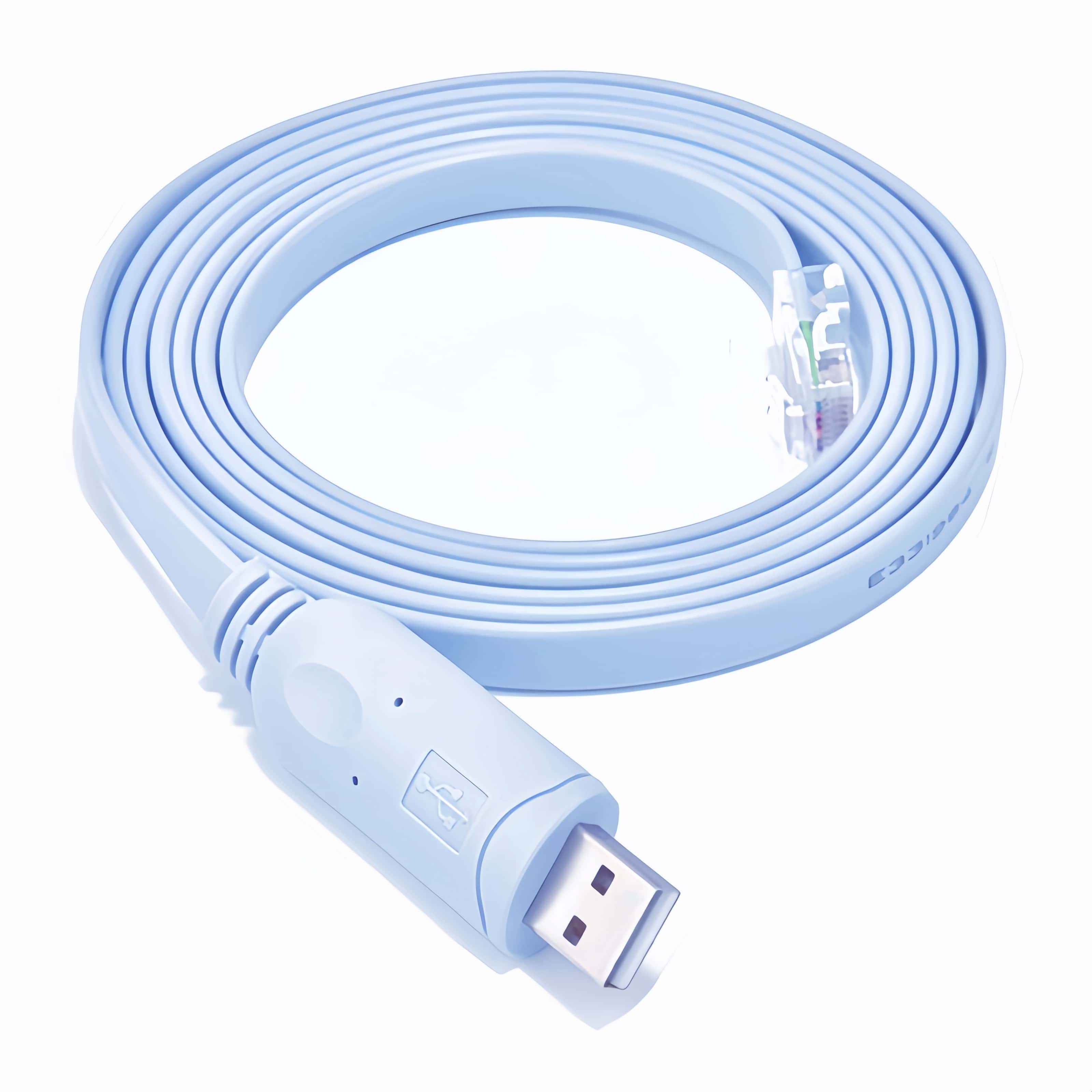
1.8m Prolific PL2303 Chip USB to RJ45 Console Rollover Cable for Cisco Huawei H3C Tenda TP-LINK Routers Switches Servers Configuration and Management Compatible in Windows XP, Win7/8/10/11,Vista,Linux,Mac OS,Android.
Product SpecificationsE
- Chip: Utilizes the engineering - grade Prolific PL2303 chip, ensuring better stability and compatibility.
- Connector Types: One end is a USB Type - A male connector, and the other end is an RJ45 connector.
- Cable Length: 1.8m (approximately 5.9 feet).
- Design Features:
- Flat design for easy storage. The PVC outer sheath is soft, resistant to tangling, abrasion, and pulling.
- Can be bent up to 330 degrees, making it flexible for use in tight spaces.
- Twisted - pair structure inside the cable to resist electromagnetic interference and ensure stable signal transmission.
- Electrostatic Protection: Built - in ESD (Electrostatic Discharge) devices can withstand 4KV of static electricity, preventing chip damage during hot - swapping.
- Compatibility: Compatible with Windows XP, Win7/8/10/11, Vista, Linux, Mac OS, and Android. Suitable for configuring and managing Cisco, Huawei, H3C, Tenda, TP - LINK routers, switches, and servers.
This USB to RJ45 console rollover cable is designed to establish a connection between a computer (with a USB port) and network devices like routers, switches, and servers (with RJ45 console ports). It enables users to access the command - line interface of these network devices for configuration, management, troubleshooting, and firmware updates.
Instructions for Use
1. Connecting Devices
- Connect to the Computer: Insert the USB Type - A male connector of the cable into an available USB port on your computer (laptop or desktop).
- Connect to the Network Device: Plug the RJ45 connector into the console port of the target network device (e.g., Cisco router, Huawei switch). Make sure the connection is secure.
2. Driver Installation (if required)
- For Windows 8, 10, and 11, the cable is driver - free. However, for other operating systems like Windows XP, Vista, Linux, Mac OS, or Android, you may need to install the appropriate Prolific PL2303 driver.
- Windows: Insert the driver CD (if provided) or download the driver from the official Prolific website. Run the installer and follow the on - screen instructions.
- Linux: You may need to use the appropriate package manager (e.g., apt - get for Debian - based systems, yum for Red Hat - based systems) to install the driver or kernel modules.
- Mac OS: Download the driver from the Prolific website, run the installer, and restart your Mac if prompted.
3. Accessing the Console
- Open a Terminal or Console Application:
- Windows: You can use applications like PuTTY. Open PuTTY, select "Serial" as the connection type, and set the serial line (usually something like COMx, where x is a number assigned to the cable) and baud rate (common baud rates for console connections are 9600).
- Linux: Use the
minicomorscreencommand in the terminal. For example, to useminicom, runsudo minicom -sto configure the serial port settings (set the correct device, e.g.,/dev/ttyUSBxand baud rate). - Mac OS: You can use the built - in Terminal application. Use commands similar to those in Linux to configure the serial connection.
- Log in to the Network Device: Once the connection is established, you may need to enter the username and password (if set) for the network device to start configuring and managing it.