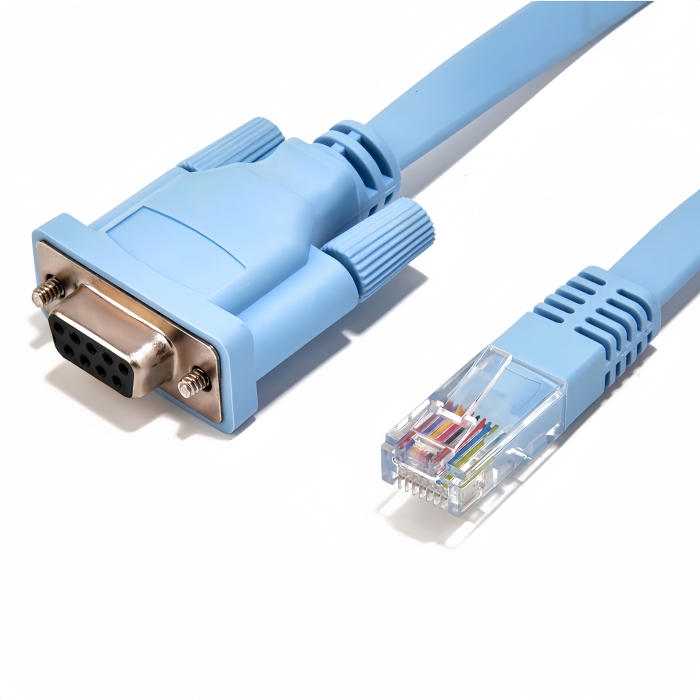
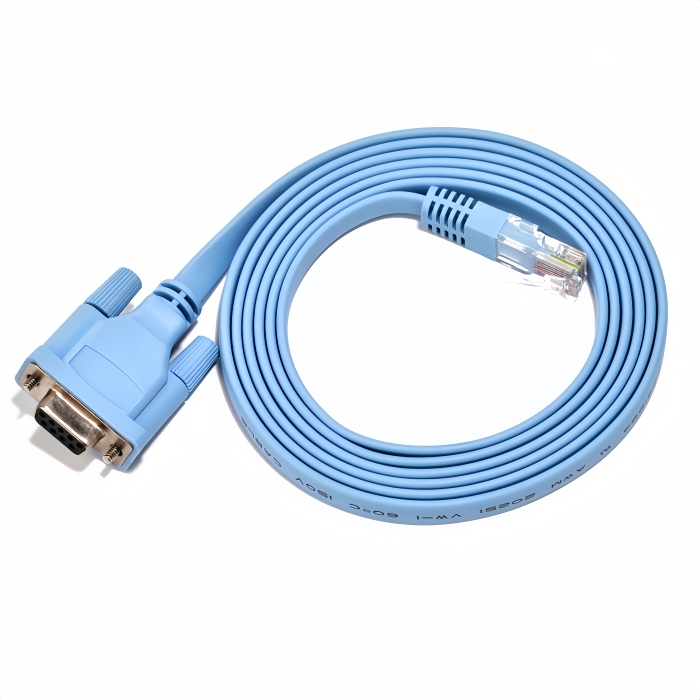
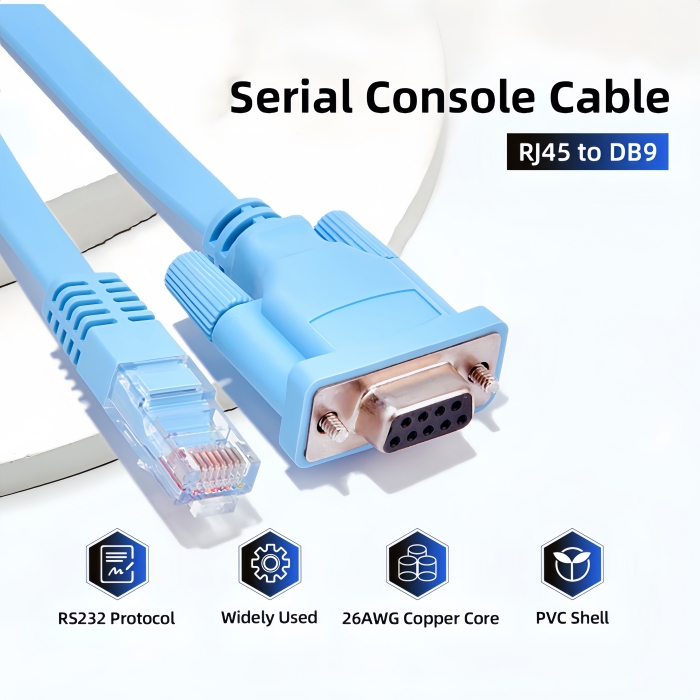
Effortlessly manage your Cisco router and switch with our reliable 6ft RJ45 to DB9 Console Cable. Connect with ease using the RJ45 8P8C Jack connector to D-Sub 9Pin Female/COM Port. Get yours now!(Scroll down to see user guide)
RJ45 to DB9 Console Cable | Cisco DB9 to RJ45 Serial Adapter (72-3383-01)-Seamless Cisco Network Device Management
The PINOWELL RJ45 to DB9 Console Cable bridges modern RJ45-equipped devices with legacy DB9 serial ports, delivering secure, reliable connectivity for Cisco routers, switches, and other networking hardware. Engineered for professional use, this cable ensures efficient configuration and troubleshooting in enterprise environments.
Core Features
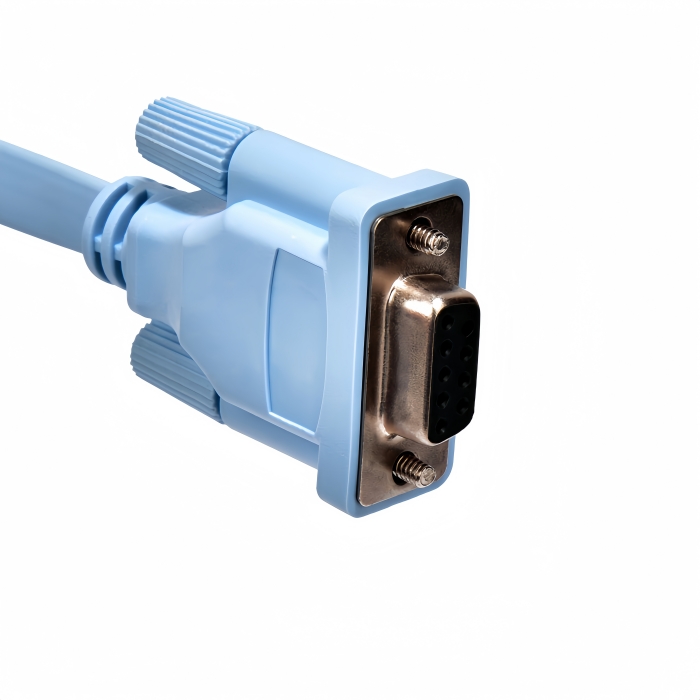
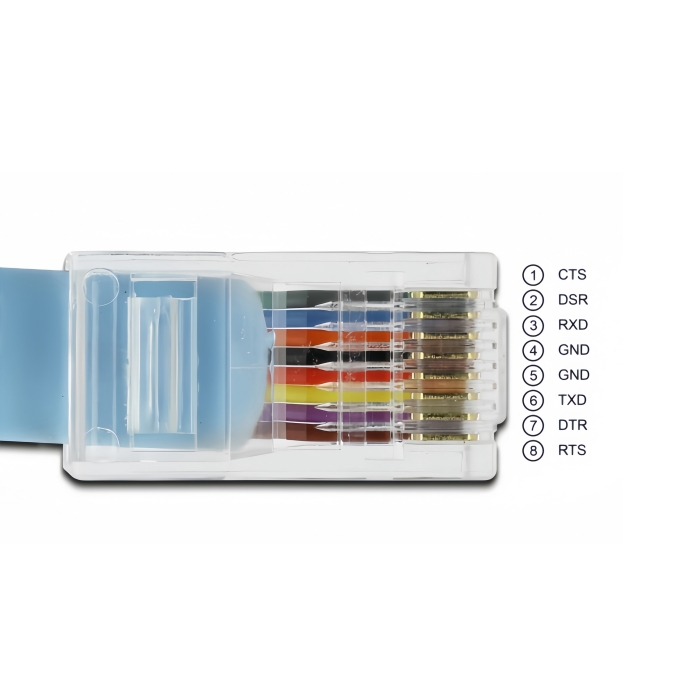
- Dual-Protocol Compatibility: Converts RJ45 (8P8C) to DB9 (D-Sub 9-pin) for direct access to Cisco console ports.
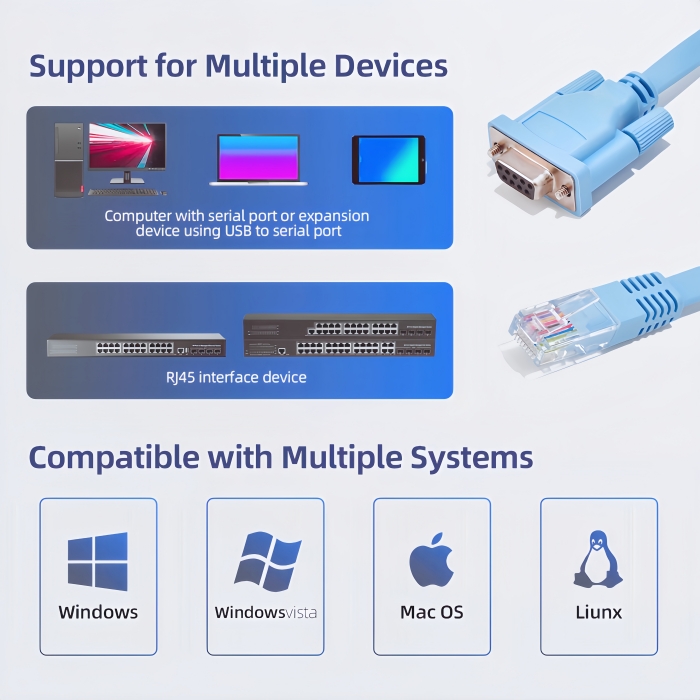
- Plug-and-Play Simplicity: No drivers required—works with Windows, macOS, Linux, and Android via terminal emulators (e.g., PuTTY, Tera Term).
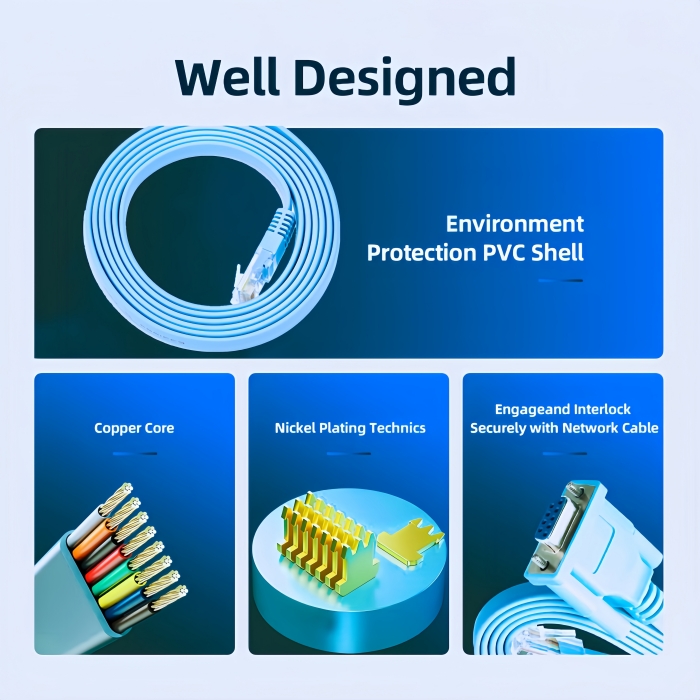
- Premium Construction:
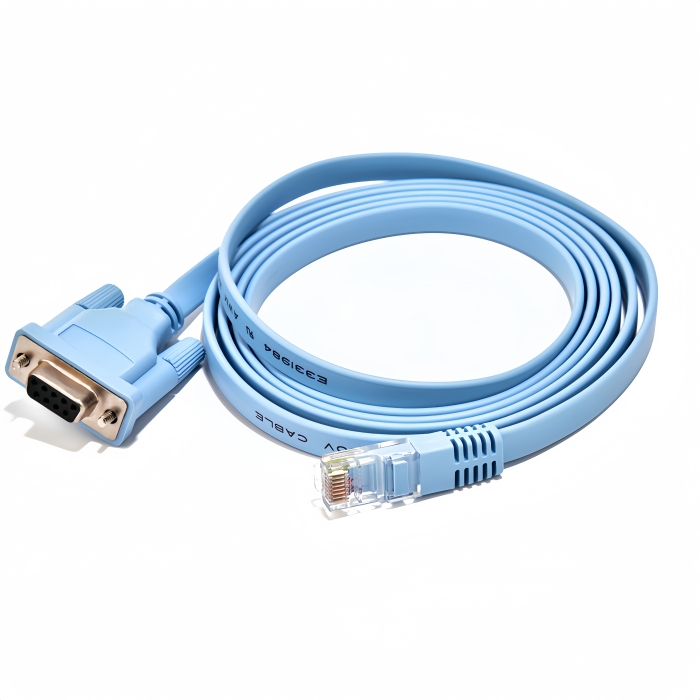
- Flat Cable Design: Tangling-resistant for easy routing in data centers.
- Oxygen-Free Copper Core: Ensures low latency and EMI/RFI resistance for stable 115.2Kbps data transmission.
- 6ft/1.8M Length: Optimal reach for desktop or rack-mounted setups.
Technical Specifications
| Specification |
Details |
| Interface |
RJ45 Male to DB9 Female (DTE/DCE auto-detect) |
| Cable Length |
6ft/1.8M |
| Compatibility |
Cisco (ASR/GSR/ISR/ME3400), Juniper, NETGEAR, Ubiquity, TP-Link, Huawei, H3C, HP, 3Com |
| OS Support |
Windows XP/7/8/10/11, macOS, Linux, Android |
| Data Rate |
Up to 115.2Kbps (RS232 standard) |
| Certifications |
RoHS, CE, FCC |
Applications
- Cisco Network Devices: Routers (e.g., ISR 4000, ASR 9000), switches (e.g., Catalyst 9000), and firewalls.
- Multi-Brand Management: Juniper MX Series, NETGEAR ProSAFE, Ubiquity EdgeRouter, TP-Link Omada.
- Industrial Use: PLC programming, embedded system debugging, and legacy equipment integration.
Why Choose PINOWELL?
- Reliability: Factory-tested for 10,000+ bend cycles and 24/7 operation.
- Cost-Effective: Direct replacement for Cisco 72-3383-01 and other OEM cables.
- Global Support: Free firmware updates and 24/7 technical assistance.
Upgrade Your Console Access
Simplify network configuration with the PINOWELL RJ45 to DB9 Cable—where precision meets performance.
![RJ45 to DB9 Cisco Console Cable]()
![High quality RJ45 to DB9 Rollover Console Cable]()
![Plug and Play RJ45 to DB9 Console Cable]()
![Wide Compatibility of RJ45 Cisco Console Cable]()
How to Use the RJ45 to DB9 Console Cable for Cisco Devices
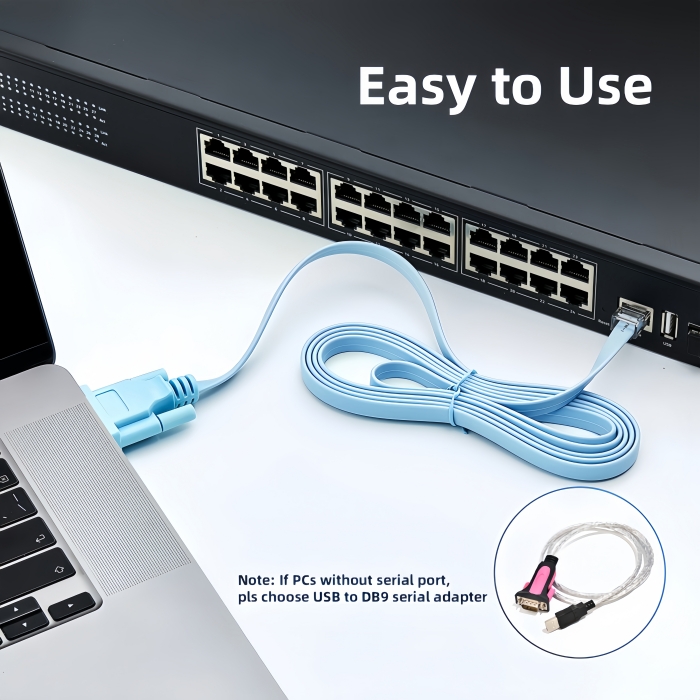
- RJ45 End: Plug the RJ45 Male connector into the Console Port of your Cisco router/switch (labeled "CONSOLE" or "AUX").
- DB9 End:
- Direct Connection: If your computer has a DB9 Serial Port, plug the DB9 Female connector directly into it.
- USB Adapter: If your computer lacks a serial port, use a USB to DB9 Adapter (e.g., FTDI-based) and connect it to a USB port.
- USB Adapter Users:
- Windows: Plug in the adapter. Drivers may auto-install via Windows Update. If not, download them from the adapter manufacturer’s website (e.g., FTDI).
- macOS: Download the FTDI VCP Driver and install it.
- Linux: Drivers are usually pre-installed (check
/dev/ttyUSB0).
-
Choose a Terminal Emulator:
- Windows: PuTTY, Tera Term.
- macOS: CoolTerm, ZTerm.
- Linux: Minicom, Screen.
-
Set Serial Parameters:
- Baud Rate: 9600 (default for Cisco devices).
- Data Bits: 8.
- Stop Bits: 1.
- Parity: None.
- Flow Control: None.
-
Select the COM Port:
- Windows: Check Device Manager > Ports (COM & LPT) for the assigned port (e.g.,
COM3).
- macOS/Linux: Use the port path (e.g.,
/dev/ttyUSB0).
-
Power On the Device:
- Ensure the Cisco router/switch is powered and booting.
-
Login to the Console:
- Press Enter in the terminal to trigger the login prompt.
- Use default credentials (e.g.,
admin/admin or refer to your device’s manual).
-
Execute Commands:
- Use Cisco IOS commands (e.g.,
show running-config, interface gigabitethernet0/0).
-
No Connection:
- Verify the cable is fully inserted into both devices.
- Check the device’s console port label (ensure it’s RS232, not Ethernet).
-
Driver Issues:
- Reinstall the FTDI driver for macOS/Linux.
- On Windows, update drivers via Device Manager.
-
Communication Errors:
- Confirm baud rate and parity settings match the device’s configuration.
- Try a shorter cable or shielded cable if EMI interference is suspected.
| Feature |
Function |
| RJ45 to DB9 Conversion |
Direct access to Cisco console ports |
| Plug-and-Play |
No drivers required for the cable itself |
| 6ft/1.8M Length |
Optimal reach for desktop/rack setups |
- Power Off: Disconnect the device from the mains before modifying connections.
- Avoid Overload: Do not use the cable for non-Cisco devices unless specified.
- Firmware Updates: Keep the device’s firmware updated for compatibility.
Need Further Assistance?
Keywords#RJ45 to DB9 Console Cable, Cisco DB9 to RJ45 Adapter, 6ft/1.8M Router Cable, Plug-and-Play Serial Converter, Oxygen-Free Copper, EMI Shielding, Windows/Mac/Linux Compatibility, CE/RoHS/FCC Certified, Juniper/NETGEAR/Ubiquity Support, Flat Cable Design, 115.2Kbps Data Rate,RJ45 to DB9 Console Setup, Cisco Router Configuration, Serial Port Terminal Guide, PuTTY/Tera Term Configuration, 9600 Baud Rate, USB to DB9 Adapter Drivers, Troubleshooting Cisco Console Cable, Windows/Mac/Linux Compatibility, CE/RoHS/FCC Certified