
.jpeg?w=800&h=800)
.jpeg?w=800&h=800)
.jpeg?w=800&h=800)
.jpeg?w=800&h=800)
.jpeg?w=800&h=800)
-0.jpeg?w=800&h=800)
.jpeg?w=800&h=800)
.jpeg?w=2560&h=2560)
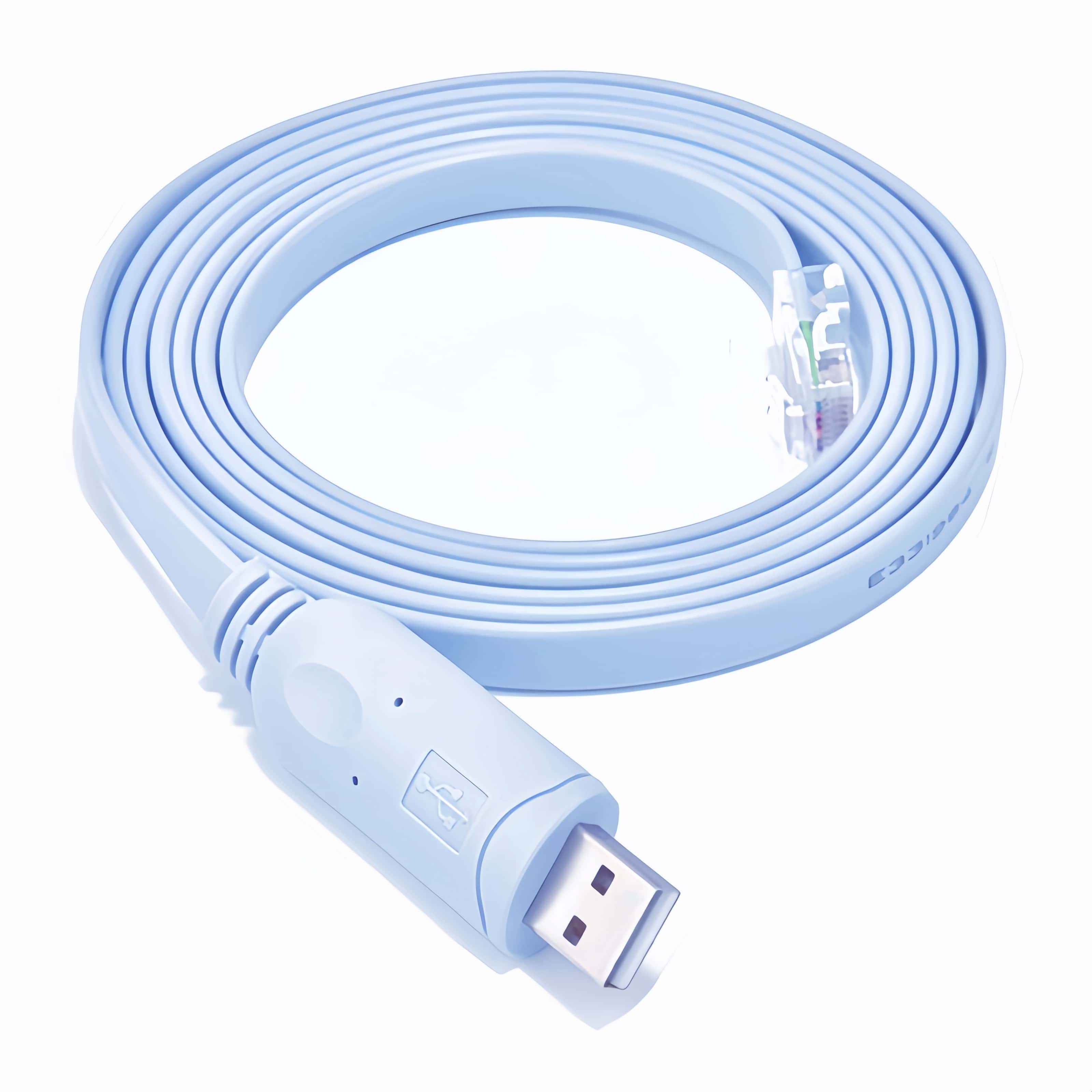
USB to RJ45 Console Cable - Reliable Debug Cable for Cisco, H3C, Arba 9306 Router Rollover Console - Durable, High-Speed and Compact Design
Product Overview
This USB to RJ45 Console Cable is designed for reliable debugging and configuration of network devices such as Cisco, H3C, and Arba 9306 routers. It enables a direct connection between a laptop or PC's USB port and the console port of these network devices, facilitating tasks like device setup, firmware updates, and troubleshooting.
Product Specifications
- Connector Types: USB Type - A male connector on one end and an RJ45 8P8C jack on the other end.
- Chipset: Features a powerful FT232 chip, ensuring data security and providing efficient and stable data transfer.
- Cable Length: 5ft/6ft/10ft
- Compatibility:
- Computers: Works with desktops and laptops.
- Network Devices: Compatible with routers, switches, firewalls, and servers, including Cisco, H3C, Arba 9306 routers, etc.
- Operating Systems: Supports Win8/10/11 (driver - free plug - and - play), as well as Windows XP, Vista, Linux, and Mac OS. For non - Windows 8/10/11 systems, drivers may need to be downloaded from the FTDI website or relevant device manufacturer's website.
Key Features
1. Efficient Data Transfer
The FT232 chip inside the cable ensures that data transferred between the computer and the network device is secure, efficient, and stable. This is crucial when configuring complex network settings or transferring sensitive data during debugging.
2. Wide Compatibility
It can connect to a variety of network devices, making it a versatile tool for network administrators and technicians. The cable is also compatible with multiple operating systems, providing flexibility in different work environments.
3. Compact and Durable Design
The cable is designed to be compact, allowing for easy storage and transportation. Its build quality ensures durability, withstanding regular use in professional settings.
Instructions for Use
1. Connecting Devices
- Computer Connection: Insert the USB Type - A connector into an available USB port on your laptop or PC.
- Network Device Connection: Plug the RJ45 8P8C jack into the console port of the target network device. Ensure a proper and secure connection.
2. Driver Installation
- Windows 8/10/11: The cable supports driver - free plug - and - play functionality. Once connected, the system should recognize the cable automatically.
- Other Operating Systems:
- Windows XP, Vista: Download the appropriate driver from the FTDI official website (https://ftdichip.com/drivers/). Navigate to the website, select “VCP Drivers” in the navigation bar, and then choose the driver according to your specific Windows version for download and installation.
- Linux and Mac OS: Drivers may be required. Check the FTDI website or the documentation of your network device for specific driver installation instructions for these operating systems.
3. Accessing the Network Device Console
- Open Terminal/Console Application:
- Windows: Use applications like PuTTY. In PuTTY, select “Serial” as the connection type, choose the correct serial line assigned to the cable (e.g., COMx), and set the baud rate. A common baud rate for console connections is 9600, but it may vary depending on the network device.
- Linux: Terminal applications such as
minicomorscreencan be used. Configure the serial port settings, including the device file (e.g.,/dev/ttyUSBx) and the baud rate. - Mac OS: Use the built - in Terminal application. Set up the serial connection with the appropriate settings for your network device.
- Log in to the Network Device: After establishing the connection, enter the username and password (if configured) for the network device to start performing configuration, debugging, or management tasks.
Important Notes
- This is a console cable, not an Ethernet cable. It is specifically designed for connecting to the console port of network devices, not for regular network data transfer.
- Before ordering, double - check the interface requirements to ensure the cable meets your needs.
- If you encounter any issues with driver installation or cable functionality, refer to the FTDI website, the documentation of your network device, or contact customer support for assistance.