
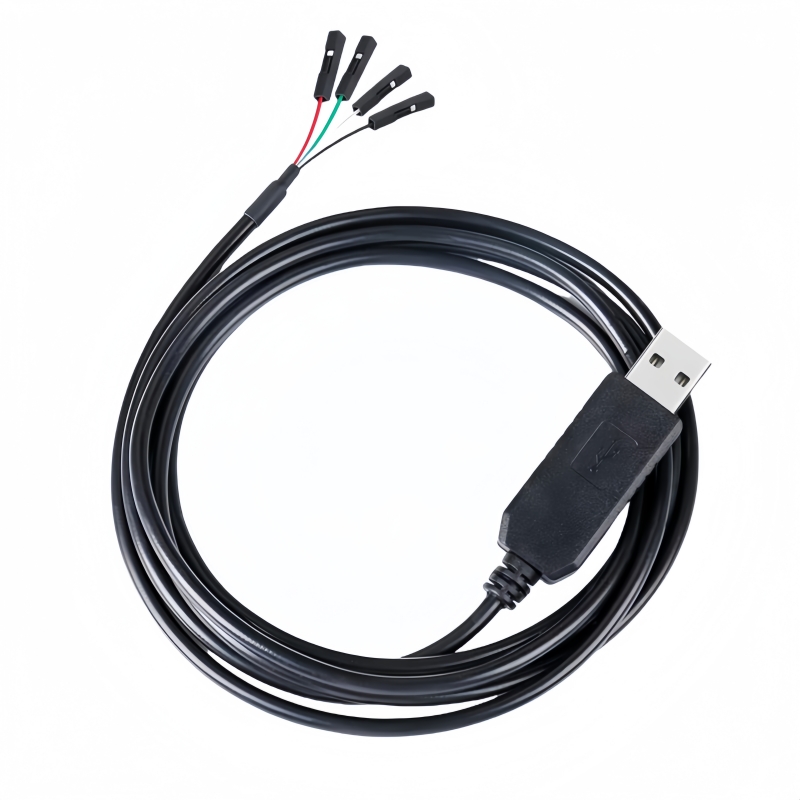
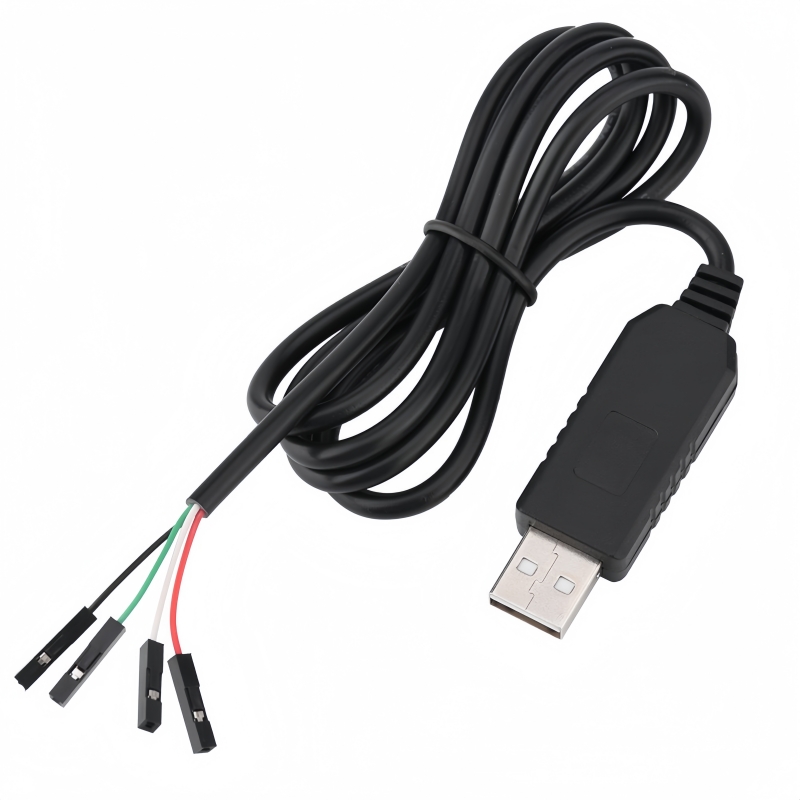
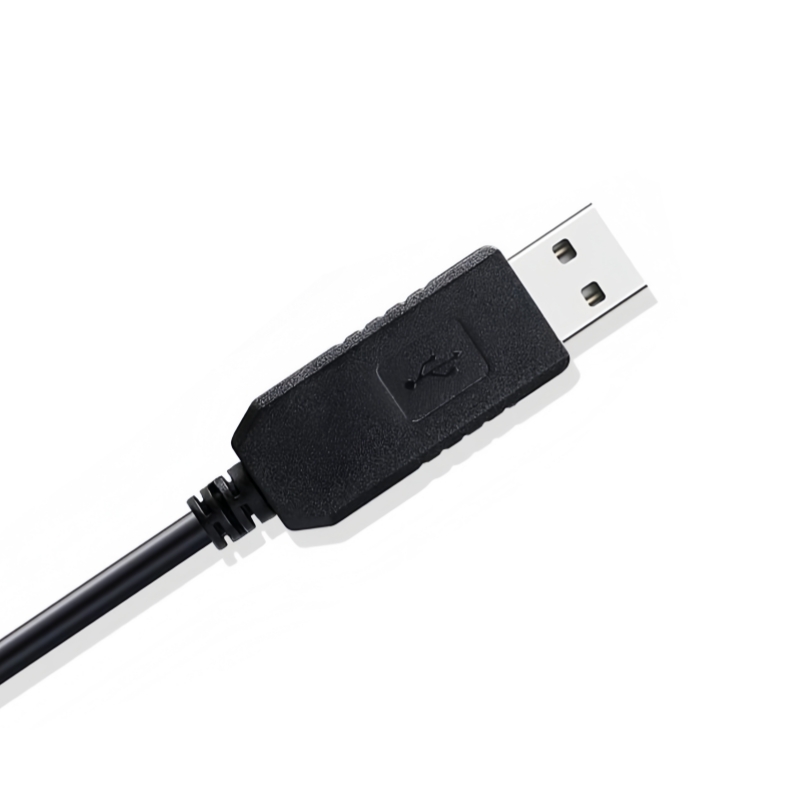
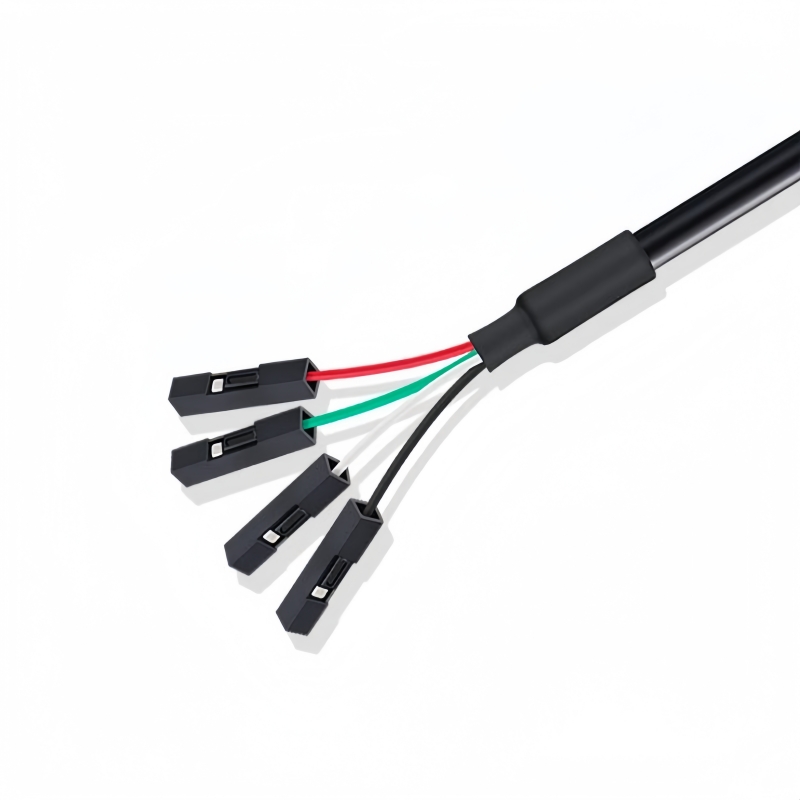
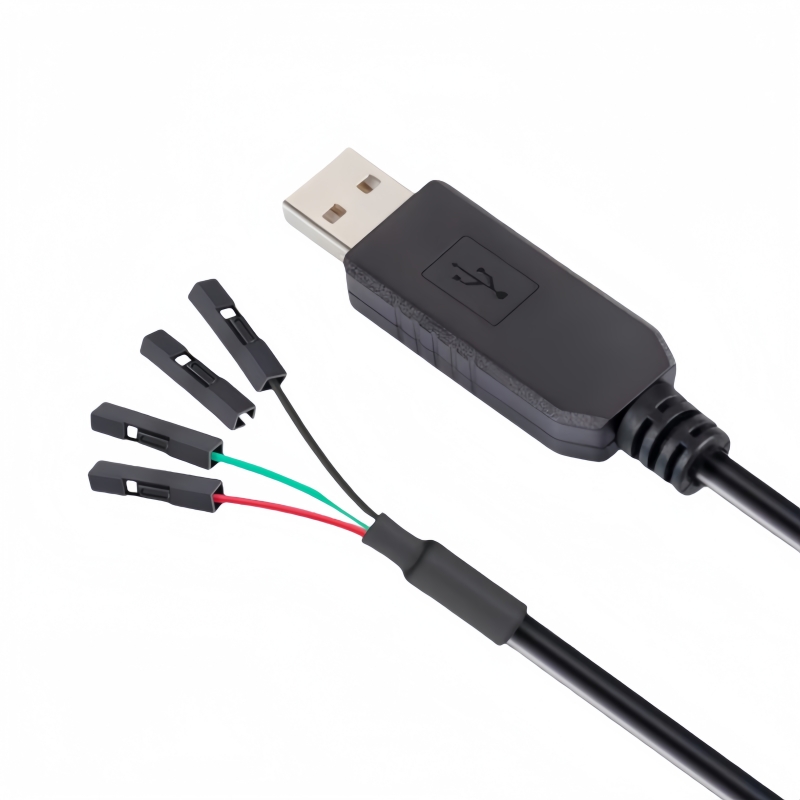
Effortlessly connect 3.3V or 5V UART devices to your laptop with the dependable 6ft USB to TTL Adapter . Seamlessly transfer data with this USB to TTL serial 4-pin header UART converter adapter!
6ft FTDI USB to TTL Serial Adapter Cable: A Versatile Connectivity Solution
The 6 - foot FTDI USB to TTL Serial Adapter Cable is an indispensable tool designed to connect devices with 3.3V or 5V logic - level UART (Universal Asynchronous Receiver - Transmitter) signals to a laptop.
Key Features
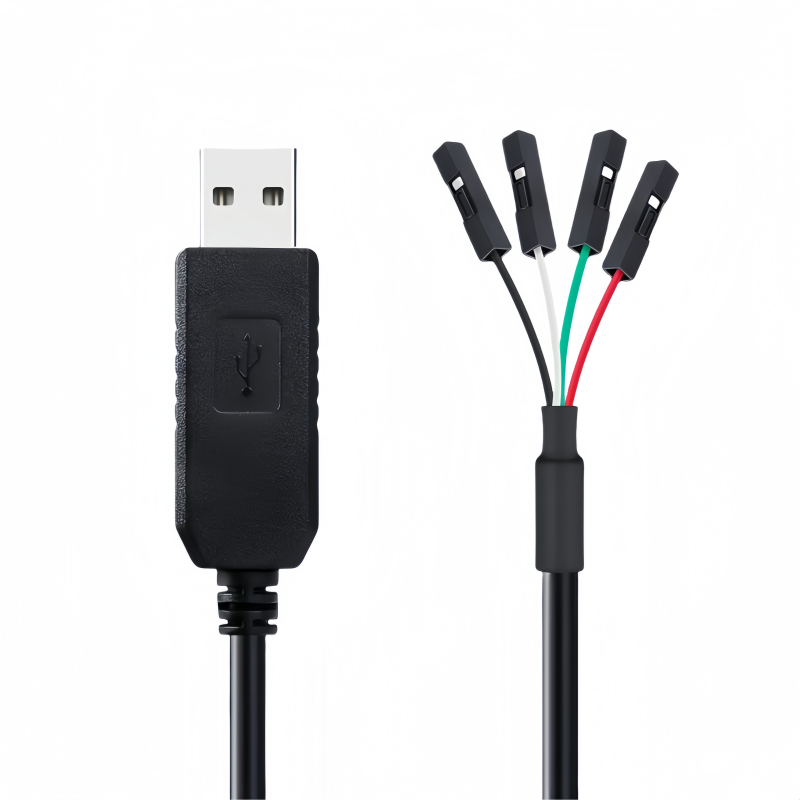
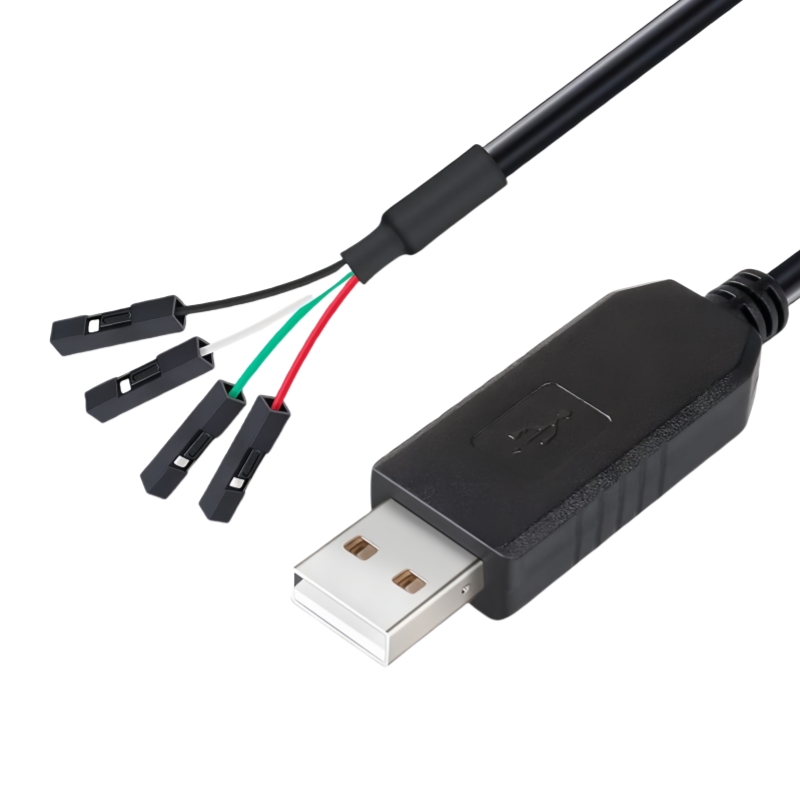
- High - Quality Chip Module: It is equipped with a genuine FT232RL chip module housed in a USB 2.0 Type A male terminal. This not only ensures wide compatibility with a vast array of devices but also supports reliable data transfer rates, making data transmission smooth and efficient.
- 4 - Pin Header Design: The cable features a 4 - pin header (0.1” pitch female socket header) that provides easy access to Tx (Transmit), Rx (Receive), VCC (5V power supply), and GND. This setup allows for seamless connection and communication between different components, making it suitable for multiple applications.
- Configurable UART Signals: The FTDI chipset on the PCB board comes with a configurable internal EEPROM. Users can individually invert UART signals by configuring the EEPROM, offering flexibility in different usage scenarios.
- Wide Compatibility: This adapter cable is highly compatible with a wide range of operating systems, including Windows 11, 10, 8, 8.1, 7 (both 32 - bit and 64 - bit), 2008, XP, Vista, CE, MacOS, Linux 2.4 and later versions. It can also be used with Android systems.
Ideal Applications
This cable is an ideal choice for debugging and firmware - flashing tasks. It can be used for Vendor ID re - write, working with routers, GPS navigation systems, set - top boxes, transmitters, and for flashing firmware on hard drives. It is also suitable for use with various devices such as laptops, Raspberry Pi, calculators, MacBooks Pro (MBP), microphones, industrial controls, test equipment, consumer electronics, synthesizers, machine tool numerical controls, printers, video display terminals, PLDs (Programmable Logic Devices), and personal computers.
Product Specifications
- Color: Black
- Cable Length: 6 feet
- Cable Type: USB to TTL Serial Adapter
- Chip Inside: FTDI FT232R Chipset, supporting 3.3V/5V
- Connector: USB 2.0 AM to 4 - Pin 0.1” Pitch Female Header
In summary, the 6ft FTDI USB to TTL Serial Adapter Cable offers a reliable, versatile, and compatible solution for all your UART - related connectivity needs.
Here's a general guide on how to use a 6ft FTDI USB to TTL Serial Adapter Cable:
1. Prerequisites
- Check Compatibility: Ensure that the device with 3.3V or 5V logic - level UART signals you want to connect is compatible with the adapter cable. Also, make sure your laptop's operating system (such as Windows, MacOS, or Linux) is supported.
- Install Drivers:
- Windows:If it's the first time using the cable, Windows may automatically detect the device and try to install the necessary drivers. However, you might need to manually download and install the FTDI drivers from the official FTDI website. After downloading, run the installer and follow the on - screen instructions.
- MacOS: Similar to Windows, the system may attempt to recognize the device. If not, download the appropriate FTDI drivers from the official source and install them.
- Linux: In most cases, Linux already has built - in support for FTDI devices. But you may need to add your user to the
dialoutgroup to have the necessary permissions. You can do this by running the commandsudo usermod -a -G dialout <your_username>in the terminal, then log out and log back in.
2. Physical Connection
- Connect to the Laptop: Plug the USB 2.0 Type A male terminal of the adapter cable into an available USB port on your laptop.
- Connect to the Target Device:
- Identify the 4 - pin header on the device with UART signals. The pins usually correspond to Tx (Transmit), Rx (Receive), VCC (Power), and GND (Ground).
- Connect the 4 - pin 0.1” pitch female socket header of the adapter cable to the 4 - pin header on the target device. Make sure to match the pins correctly. Usually, you can refer to the device's documentation to identify which pin is which. For example, the Tx pin on the adapter should be connected to the Rx pin on the target device, and vice versa.
3. Software Configuration
- Open Serial Communication Software:
- Windows: You can use software like PuTTY, Tera Term, or RealTerm. Install the software if you haven't already.
- MacOS: CoolTerm or screen (a command - line tool) can be used.
- Linux: Minicom or screen are popular choices.
- Configure Serial Settings:
- Baud Rate: Set the baud rate in the serial communication software to match the baud rate of the target device. Common baud rates are 9600, 115200, etc.
- Data Bits, Parity, and Stop Bits: Set these parameters according to the requirements of the target device. For example, 8 data bits, no parity, and 1 stop bit are common settings.
- Select the COM Port (Windows) or Device File (MacOS/Linux):
- Windows: In the serial communication software, select the appropriate COM port that the adapter cable is assigned to. You can find the COM port number in the Device Manager under "Ports (COM & LPT)".
- MacOS: The device file is usually something like
/dev/tty.usbserial - <serial_number>. You can find it in the Terminal by running the commandls /dev/tty.*. - Linux: The device file is typically
/dev/ttyUSB0or similar. You can check the available serial devices using the commandls /dev/ttyUSB*.
4. Start Communication
- Transmit and Receive Data:
- Once the settings are configured correctly, you can start sending and receiving data between the laptop and the target device. In the serial communication software, you can type text to send data to the target device, and any data received from the device will be displayed in the software's terminal window.
- Perform Specific Tasks:
- If you are using the cable for debugging, you can monitor the data stream to identify issues in the device's operation.
- For firmware flashing, follow the specific instructions provided by the device's manufacturer to upload the new firmware using the serial connection.